Quick start
Export your first ChatGPT conversation
Seven short steps from install to saved file. Each step tells you what you should see, so you know it worked.
Before you start
- Use Chrome or another Chromium browser (Edge, Brave, Arc). ChatShell only runs on chatgpt.com.
- Install ChatShell from the Chrome Web Store. If chatgpt.com was already open, reload that tab once.
Export your first ChatGPT conversation
-
Accept the privacy notice (first time only)
On first use, ChatShell opens a new browser tab titled “Welcome to ChatShell”. Click Agree and start using ChatShell, then go back to your ChatGPT tab.
What you should see: a message saying your consent was saved. If you click “Not now”, ChatShell stays switched off and will ask again next time.
- Open the conversation you want to save On chatgpt.com, click a chat in the left sidebar so its messages are on screen. If no conversation is open, ChatShell tells you to “Please open a conversation first”.
-
Open ChatShell
Use any one of these:
- Click the round shell button on the right edge of the ChatGPT page (hover shows “Export conversation”). You can drag it; if you drop it at a screen edge it docks there and partly hides until you hover over it.
- Click the ChatShell icon in the browser toolbar (under the puzzle-piece menu if it is not pinned).
- Press Alt+Shift+E on Windows and Linux, or Option+Shift+E on Mac.
What you should see: a window titled “ChatShell · Elegant Chat Exporter” with Current Chat, Batch Export, Preferences, Account and About on the left.
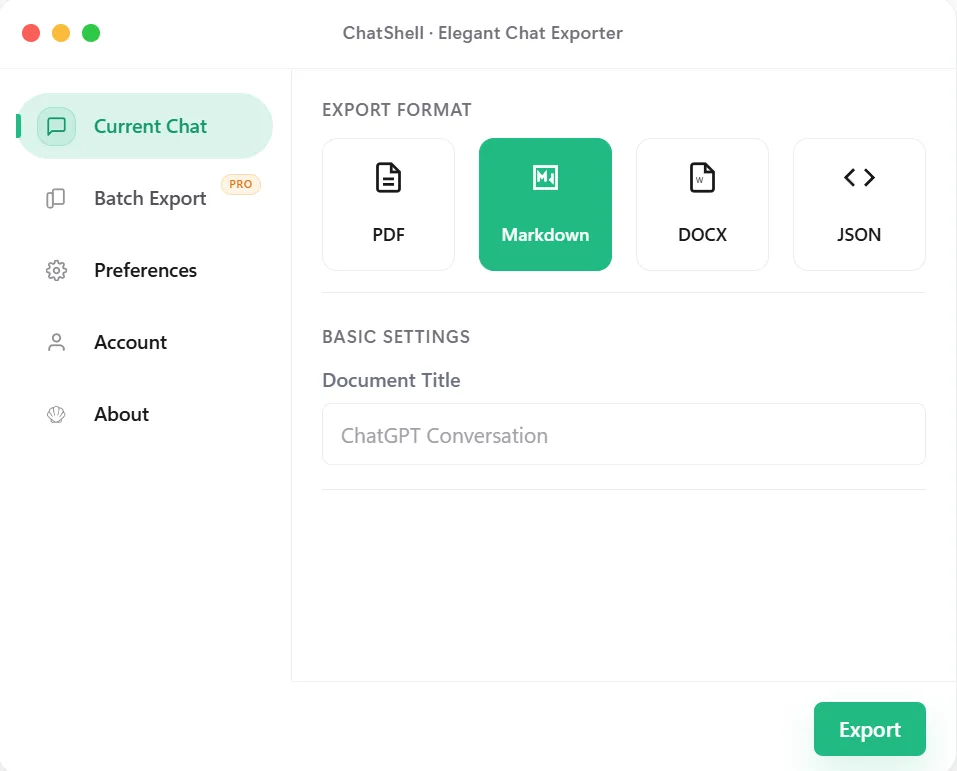
The Current Chat tab: pick a format, then click Export. -
Pick a format
On the Current Chat tab, choose PDF, Markdown, DOCX or JSON. Optionally change the Document Title, which also becomes the file name.
What you should see: the format you picked turns green. PDF shows extra options such as the PDF template.
Not sure which? PDF is best for sharing, Markdown for notes, DOCX for editing in Word, JSON for backups. See the PDF, Markdown, DOCX and JSON guides.
-
Click Export
Press the green Export button at the bottom right of the window and keep the tab open.
What you should see: a progress message such as “Preparing export…” or “Generating PDF…”, then a notice that your file was exported successfully.
-
Find your file
ChatShell hands the file to your browser, so it lands wherever Chrome saves downloads (usually your Downloads folder). Open
chrome://downloadsto see it and open its folder. If Chrome is set to “Ask where to save each file”, a save dialog appears instead.What you should see: a new file named after your chat title, ending in .pdf, .md, .docx or .json. Very large PDFs are split into parts and delivered together as one .zip.
- Open it Double-click the file. Your conversation is saved on your computer; ChatShell does not upload chat content.
Free vs paid limits
Standard monthly: $0 for the first month with code CHATSHELL, then $4/month. The checkout link includes the code; enter it if it is missing.
| Plan | Single-chat exports | Also includes |
|---|---|---|
| Free | 3 PDF and 5 other-format exports per month | Exports carry a ChatShell watermark |
| Standard ($4/month) | Unlimited | No watermark, timestamps, separator removal |
| Pro ($8/month) | Unlimited | Everything in Standard plus batch export and team workspace export |
The free monthly allowance resets at the start of each calendar month. When it runs out ChatShell shows “Monthly limit reached”. See pricing and activation and billing.
Stuck?
Nothing happens when you click, the shortcut does not respond, or no file appears? Go to Troubleshooting. You can also email support@chatshellexport.com.